
Import via a link
In this part, we’re going to explore the method of importing your Google Calendar into Nextcloud using a link.
One of the advantages of this approach is that changes made to your Google Calendar will be automatically reflected in Nextcloud.
However, it’s important to note that this synchronisation is read-only, which means that if you make changes on Nextcloud, they won’t be effective on Google Calendar.
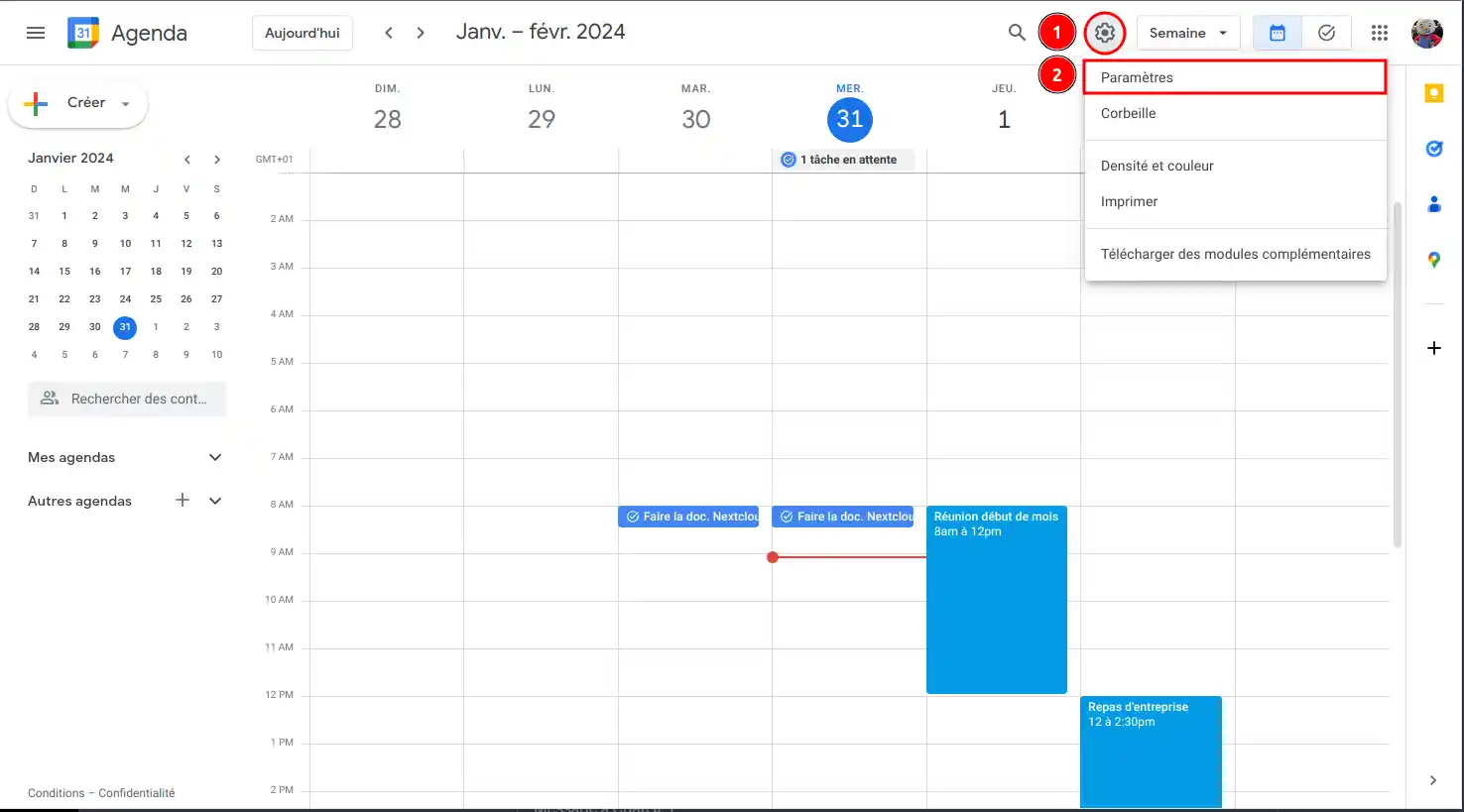
Step 1: Go to the Google Calendar settings by clicking on the ⚙️ gear (1) at the top right of the screen, then on “Settings” (2):
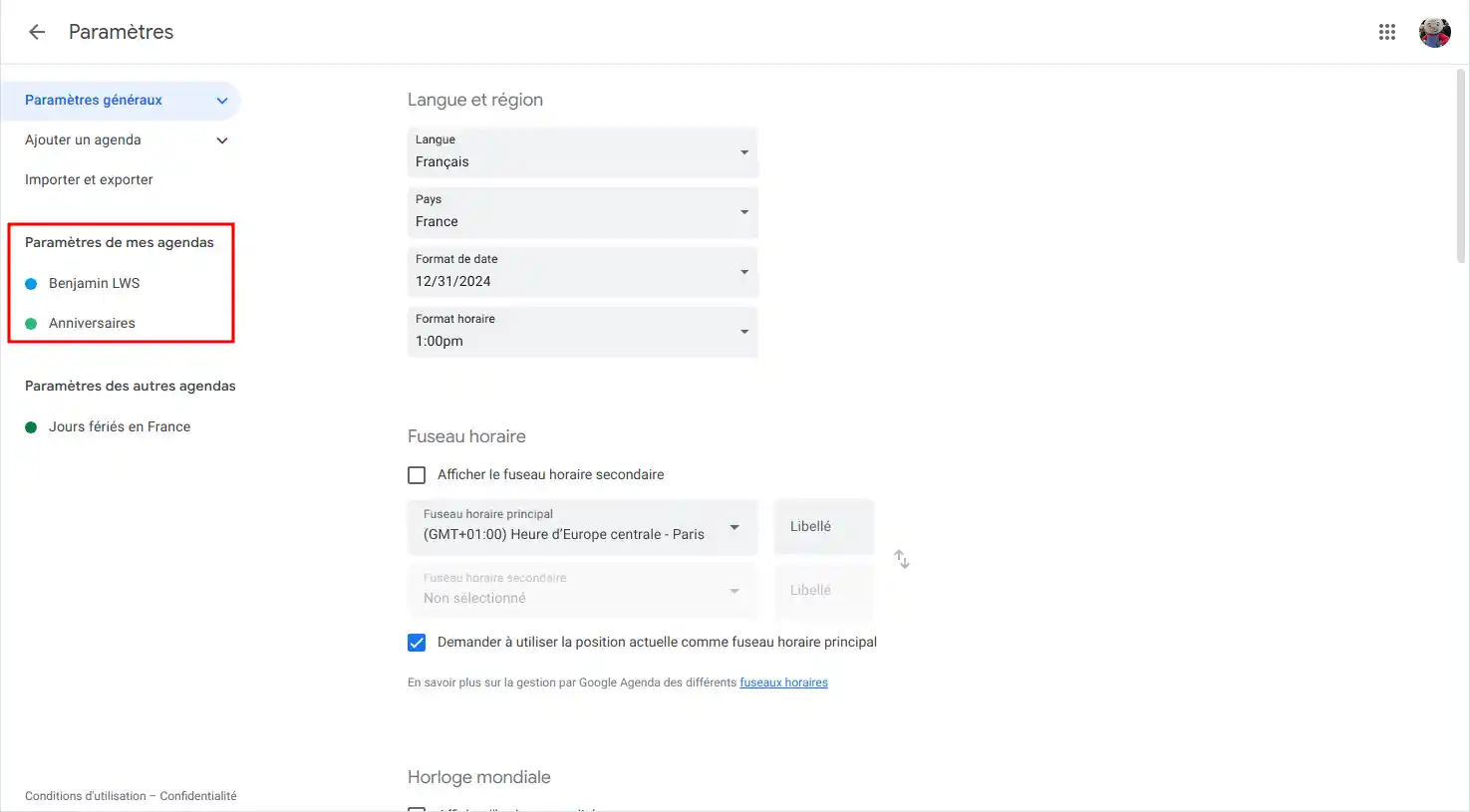
Step 2: Once in the settings, in the side menu on the left of the screen, click on the calendar you wish to import in “My calendar settings “:
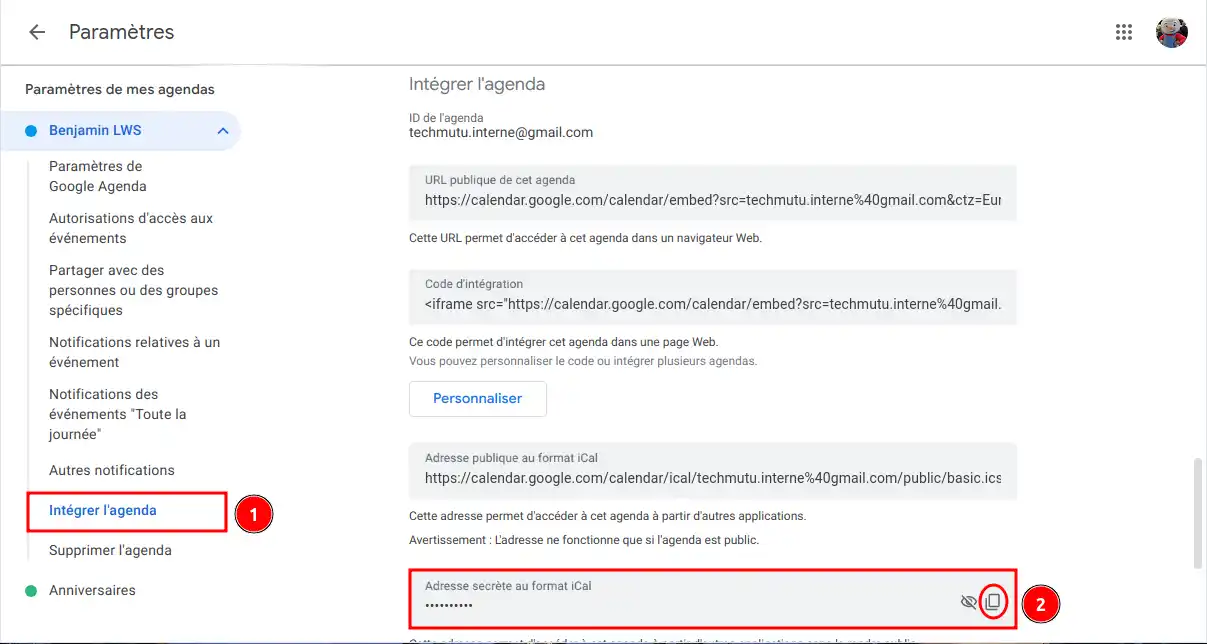
Step 3: Still in the left-hand side menu, click on “Integrate calendar” (1), then on “Secret address in iCal format” click on the “Copy” button (2) :
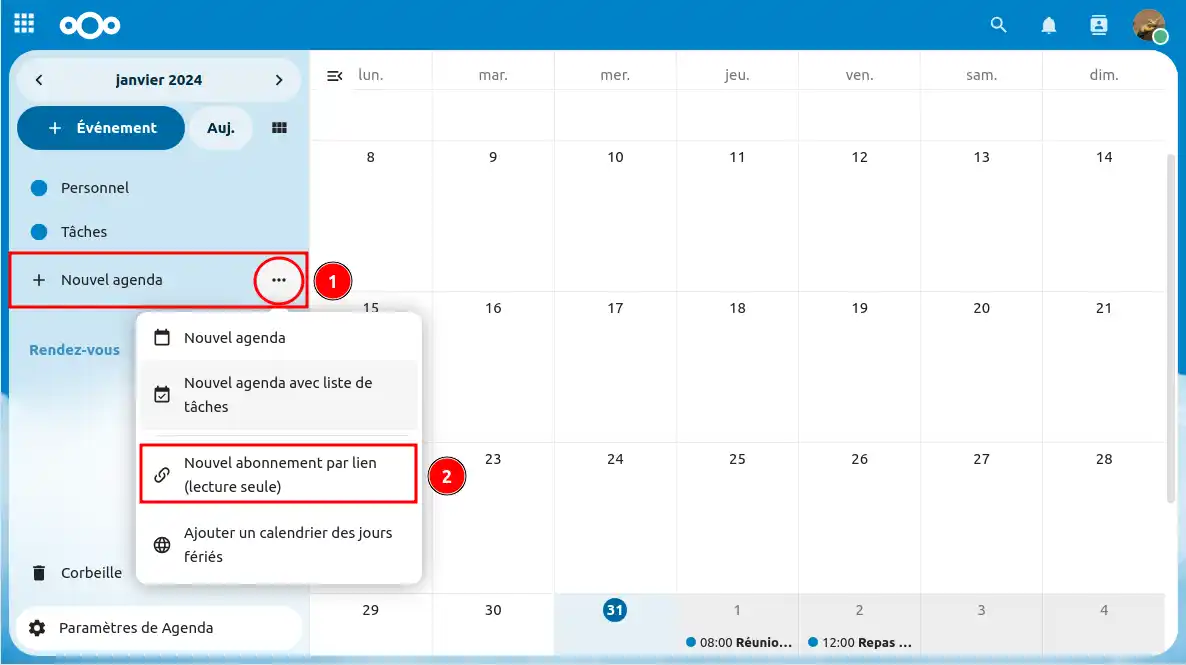
Step 4: Now go to Nextcloud Agenda, and click on “+ New calendar” (1) on the right of the screen, then on “New subscription by link (read-only)” (2 ) :
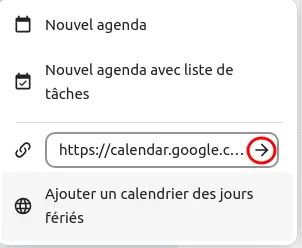
Step 5: Next, enter the link you previously copied from Google Calendar and press the ➡️ arrow:
That’s it! Now you know how to add a Google Calendar from a read-only link. Here, I can see that my tasks and events have been imported into Nextcloud and that the calendar is visible in my list!
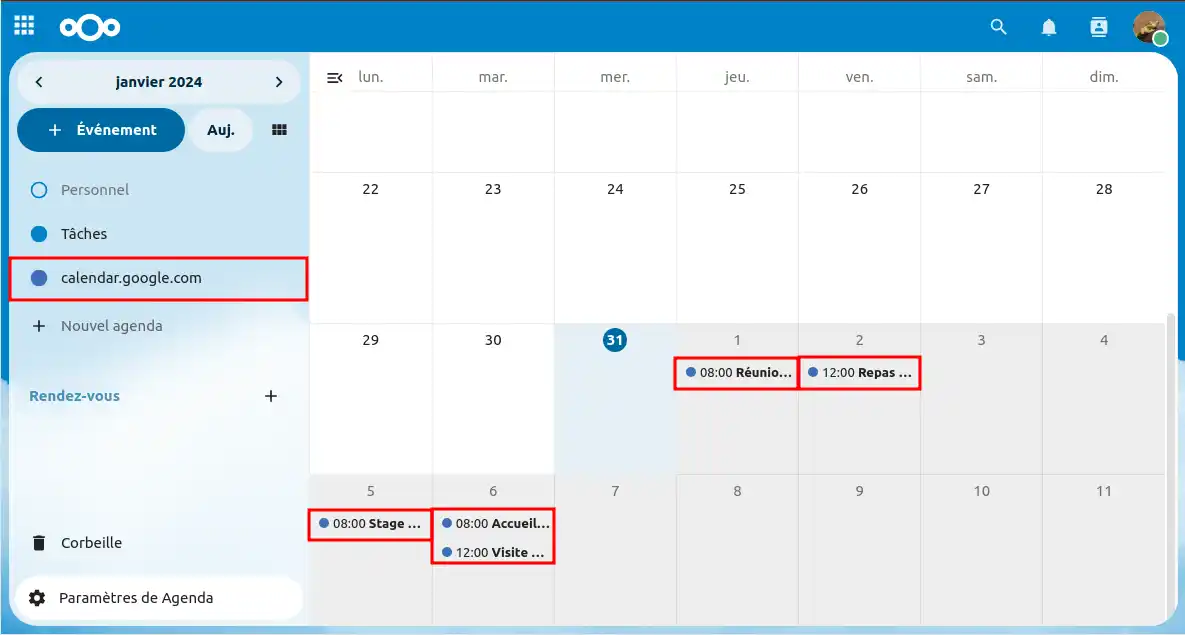
[tips_info]Synchronisation between Nextcloud and Google Calendar can take up to 15 minutes
.
Conclusion
You now know how to :
- Import your Google Calendar into Nextcloud via a file for efficient centralisation of your events, although this does not allow automatic synchronisation in the future.
- Use a link to import your Google Calendar into Nextcloud, offering the advantage of real-time synchronisation (in read-only mode) with your calendar.